Setup Guide
Get your GoXLR Utility up and running in minutes
1
Download for Windows
Grab the GoXLR download for Windows 10 & 11 (64-bit):
2
Install the Software
- Open the
goxlr-utility-1.2.4.zipfile you downloaded - Extract it and run the installer
- Follow the installation wizard
- Launch GoXLR Utility from the Start menu
3
Connect Your GoXLR
Plug in your GoXLR or GoXLR Mini via USB. The device should be automatically detected. If not:
- Try a different USB port (prefer USB 3.0 on the back of your PC)
- Restart the GoXLR Utility application
- Check that no other GoXLR software is running
- Try a different USB cable
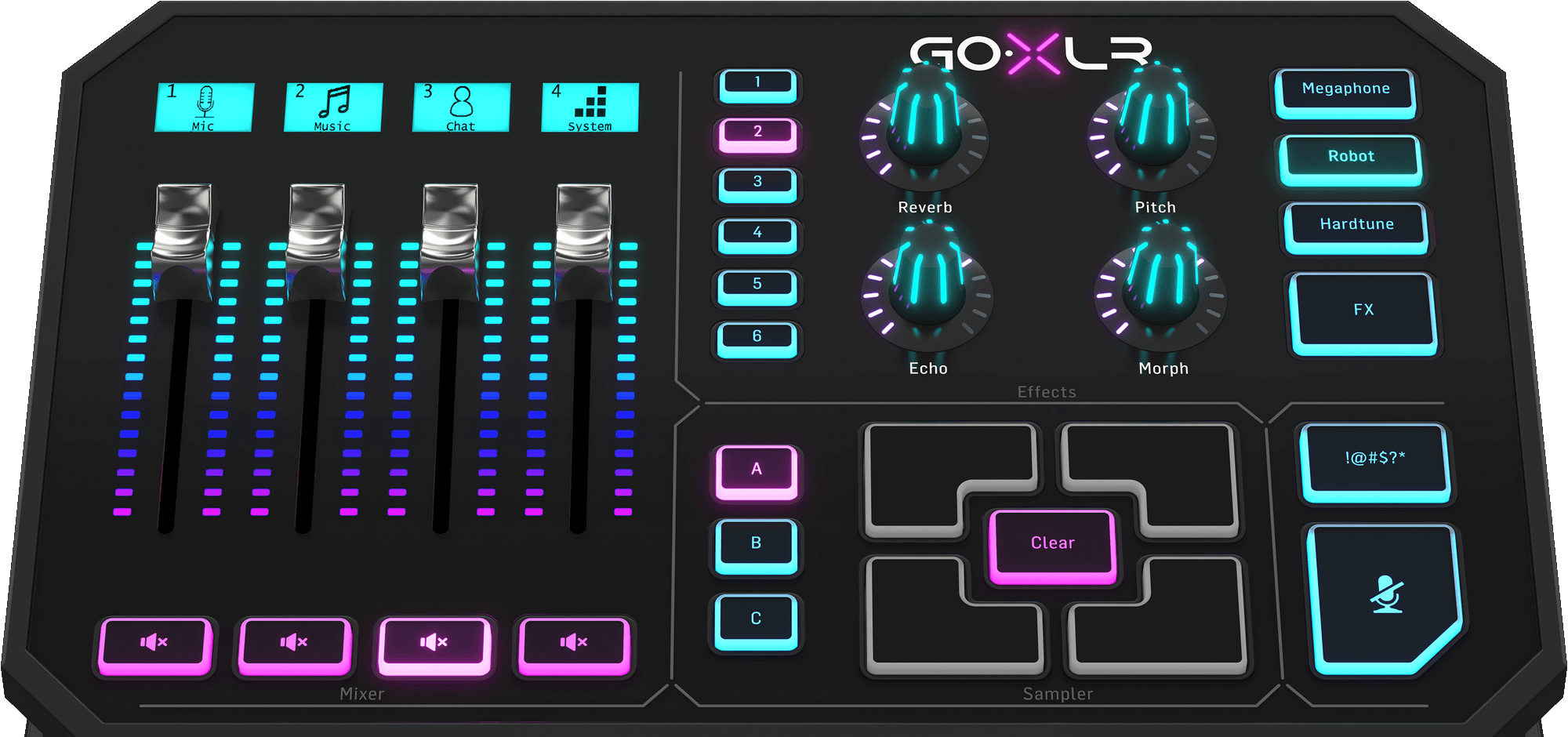
4
Configure Your Audio
Set up your audio routing for optimal performance:
Windows Audio Settings
- Set "GoXLR System" as your default playback device
- Set "GoXLR Chat Mic" as your default recording device
- Configure individual apps to use specific channels
In GoXLR Utility
- Adjust fader levels for each channel
- Configure mic processing (Gate, EQ, Compressor)
- Set up your routing matrix
- Customize RGB lighting
- Save your configuration as a profile
Streaming Software (OBS, Streamlabs)
- Add "GoXLR Stream Mix" as an audio input
- Set monitoring to "Monitor Off"
- Adjust levels in GoXLR Utility, not OBS
Quick Tips
First Time Setup
Start with a default profile and make small adjustments. Save frequently to avoid losing your settings.
Mic Processing
Enable the Gate first to reduce background noise, then adjust EQ and Compressor for your voice.
Routing
Route Game audio to System, Music to Music, Discord to Chat, and Mic to all outputs except System.
Profiles
Create separate profiles for different games, streams, or recording sessions. Switch instantly with one click.
Need More Help?
Check out our FAQ for answers to common questions.